How to edit an incorrect time entry
Last updated 9 months ago
You can fix a time entry by:
Go to the Time Sheets tab. Here you’ll see all saved entries.
Near the top of the screen, select the green date label to open up the date picker
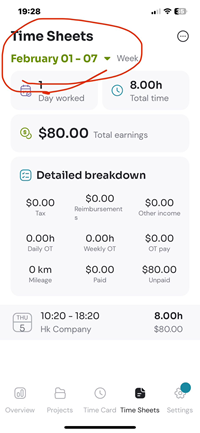
Select your desired week to view the entries for that period. You can also select to view times by month, pay period, or a custom date range.
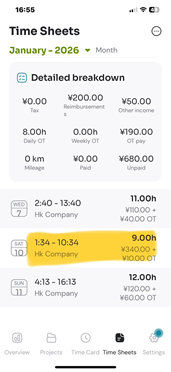
Once you find the entry you want to edit, simply select it — which will open the entry details page. From here you can edit all of the entry’s details.
You can even delete the entry using the bin icon on the top right.
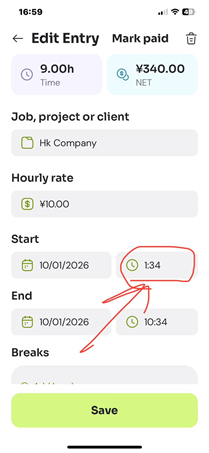
For example, I want to change the start time from 1:34 to 7:34
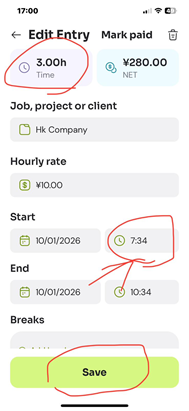
Once you make your changes, you will see the ‘time’ and ‘net’ labels at the top of the entry details screen update to reflect the entriy’s total time and net pay.
Once done, press the ‘Save’ button to store your changes.
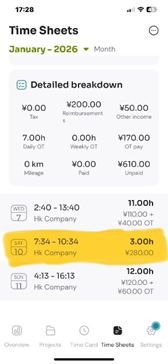
After you save, you will see the time sheet reflect your changes too.
Special considerations for team accounts:
In team accounts, managers have the option to disable manual editing of tracked time entries. If this setting is enabled for your team, you will be unable to modify start and end times; however, you can still update notes and add attachments.
Please note that managers retain the ability to adjust past entries. If you need to correct an error, please contact your team manager to request the necessary adjustments.
Was this helpful?
Still need help? Share an idea